


1000 字
5 分钟
Django-PaddleOCR-VL OCR服务部署
PaddleOCR 部署
NOTE使用官方 Docker 镜像,要求 :
- Docker 版本 >= 19.03
- 机器装配有 GPU
- NVIDIA 驱动支持 CUDA 12.6 或以上版本
配置docker-compose.yml:
services:
  paddleocr-vl-api:
    image: ccr-2vdh3abv-pub.cnc.bj.baidubce.com/paddlepaddle/paddleocr-vl:${API_IMAGE_TAG_SUFFIX}
    container_name: paddleocr-vl-api
    ports:
      - 8080:8080
    depends_on:
      paddleocr-vlm-server:
        condition: service_healthy
    deploy:
      resources:
        reservations:
          devices:
            - driver: nvidia
              device_ids: ["0"]
              capabilities: [gpu]
    user: root
    restart: unless-stopped
    environment:
      - VLM_BACKEND=${VLM_BACKEND:-vllm}
    command: /bin/bash -c "paddlex --serve --pipeline /home/paddleocr/pipeline_config_${VLM_BACKEND}.yaml"
    healthcheck:
      test: ["CMD-SHELL", "curl -f http://localhost:8080/health || exit 1"]

  paddleocr-vlm-server:
    image: ccr-2vdh3abv-pub.cnc.bj.baidubce.com/paddlepaddle/paddleocr-genai-${VLM_BACKEND}-server:${VLM_IMAGE_TAG_SUFFIX}
    container_name: paddleocr-vlm-server
    deploy:
      resources:
        reservations:
          devices:
            - driver: nvidia
              device_ids: ["0"]
              capabilities: [gpu]
    # TODO: Allow using a regular user
    user: root
    restart: unless-stopped
    healthcheck:
      test: ["CMD-SHELL", "curl -f http://localhost:8080/health || exit 1"]
start_period: 300s配置.env:
API_IMAGE_TAG_SUFFIX=latest-gpu-sm120
VLM_BACKEND=vllm
VLM_IMAGE_TAG_SUFFIX=latest
启动:
docker-compose up -d测试
# -*- coding: utf-8 -*
import base64
import requests
import pathlib

API_URL = "http://44239ef8.r20.cpolar.top/layout-parsing" # 服务URL

image_path = "./test.png"

# 对本地图像进行Base64编码
with open(image_path, "rb") as file:
    image_bytes = file.read()
    image_data = base64.b64encode(image_bytes).decode("ascii")

payload = {
    "file": image_data, # Base64编码的文件内容或者文件URL
    "fileType": 1, # 文件类型,1表示图像文件
}

# 调用API
response = requests.post(API_URL, json=payload)

# 处理接口返回数据
assert response.status_code == 200
result = response.json()["result"]
for i, res in enumerate(result["layoutParsingResults"]):
    print(res["prunedResult"])
    md_dir = pathlib.Path(f"markdown_{i}")
    md_dir.mkdir(exist_ok=True)
    (md_dir / "doc.md").write_text(res["markdown"]["text"])
    for img_path, img in res["markdown"]["images"].items():
        img_path = md_dir / img_path
        img_path.parent.mkdir(parents=True, exist_ok=True)
        img_path.write_bytes(base64.b64decode(img))
    print(f"Markdown document saved at {md_dir / 'doc.md'}")
    for img_name, img in res["outputImages"].items():
        img_path = f"{img_name}_{i}.jpg"
        pathlib.Path(img_path).parent.mkdir(exist_ok=True)
        with open(img_path, "wb") as f:
            f.write(base64.b64decode(img))
        print(f"Output image saved at {img_path}")
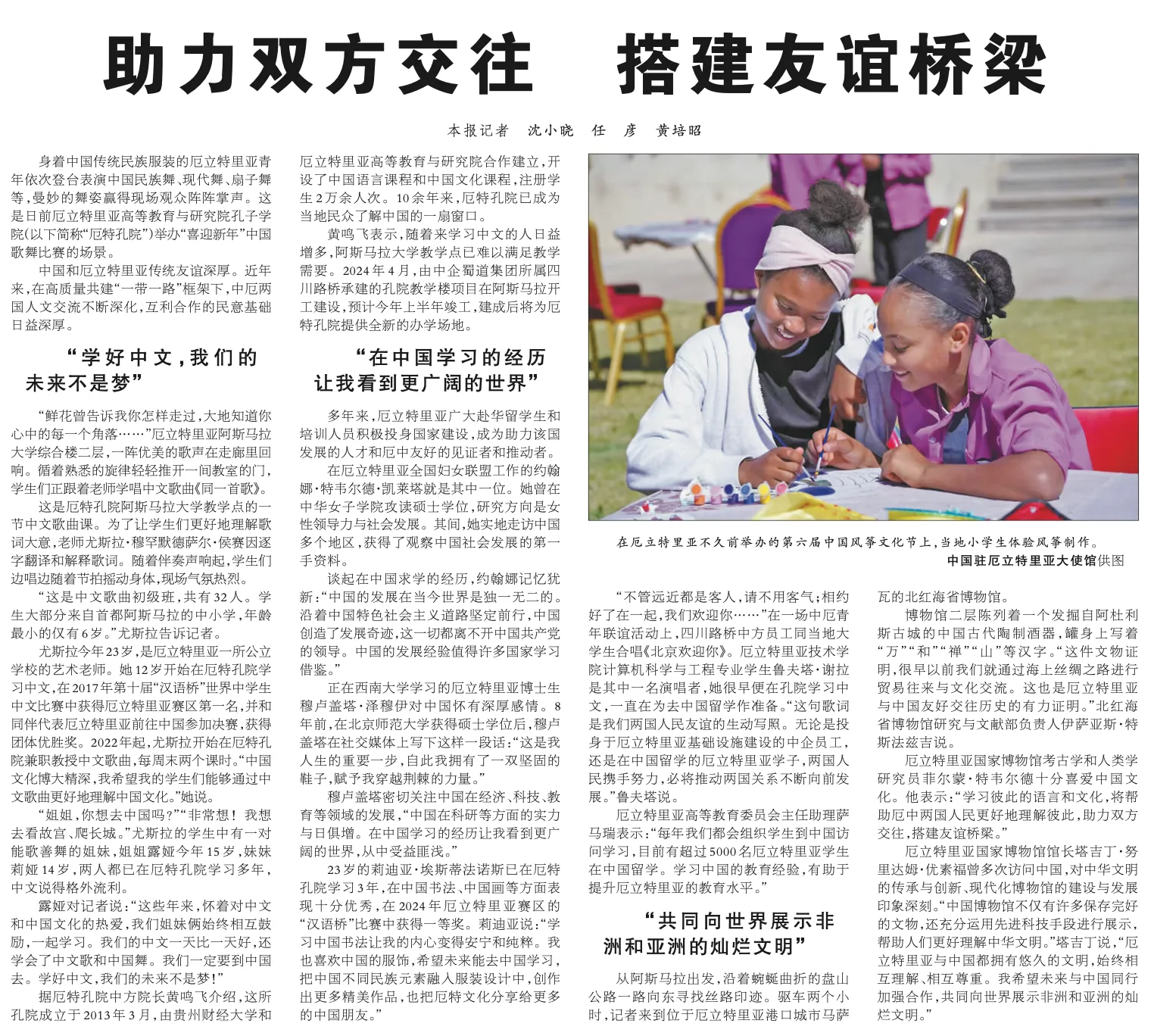
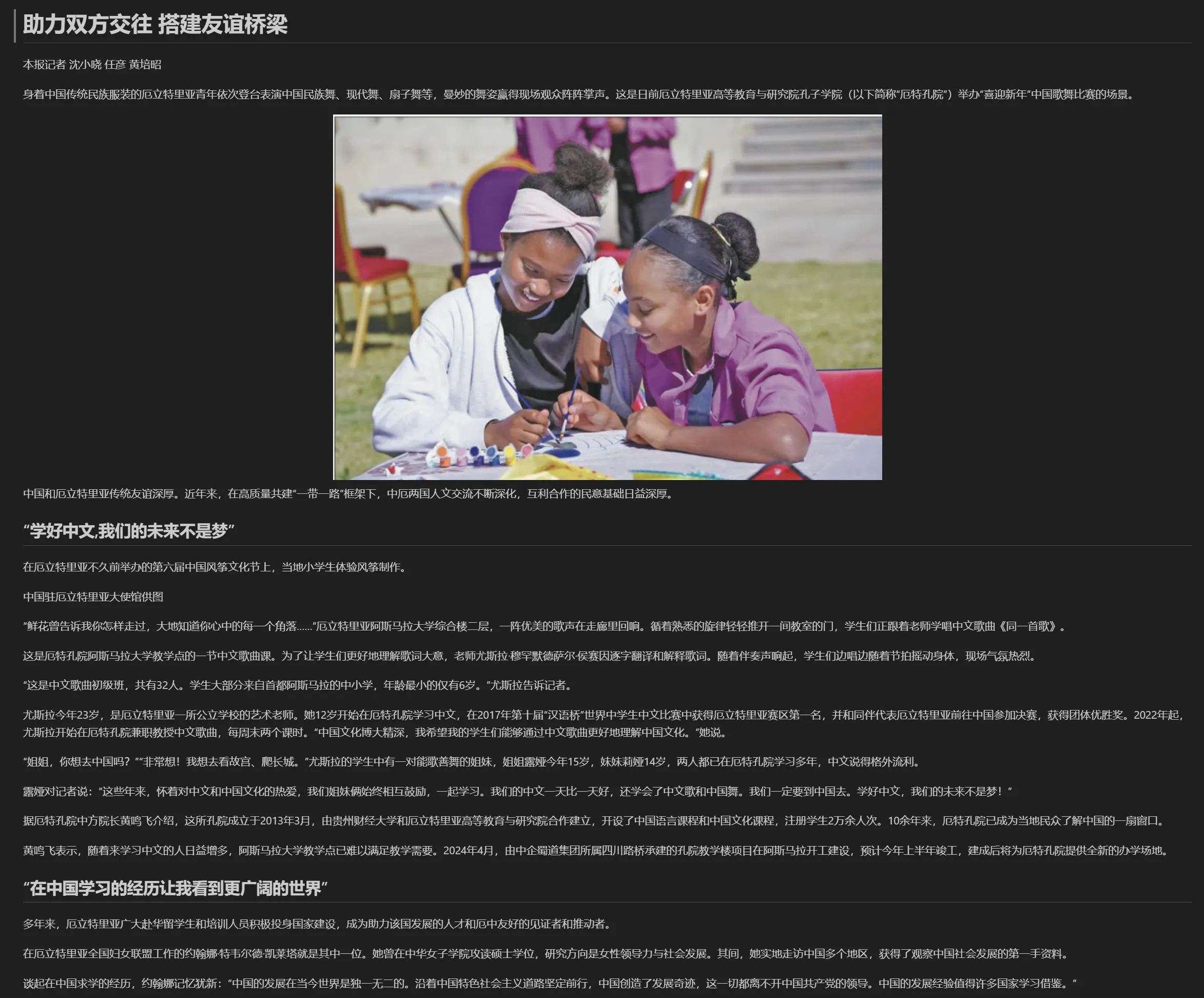
测试图片
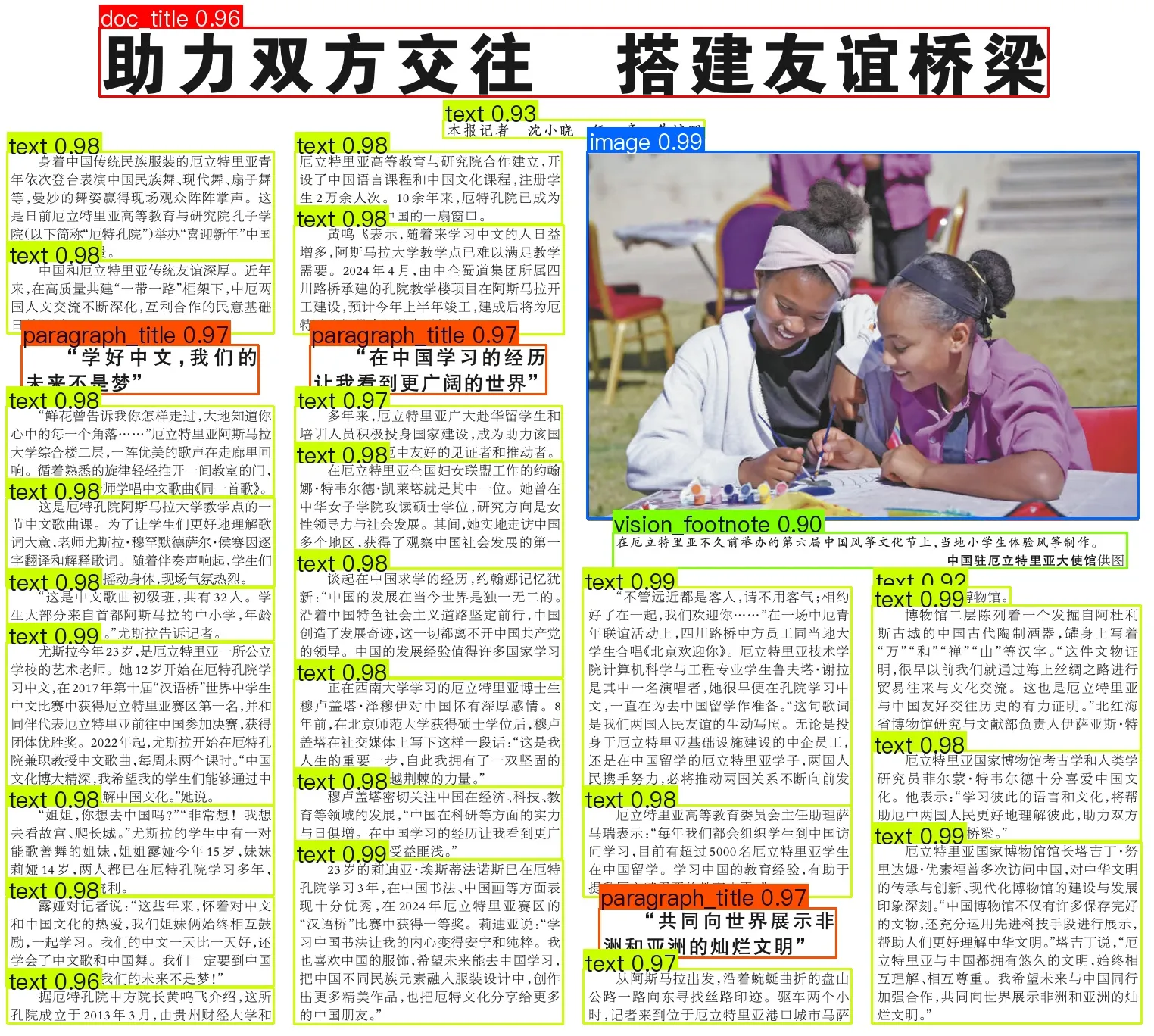
识别结果
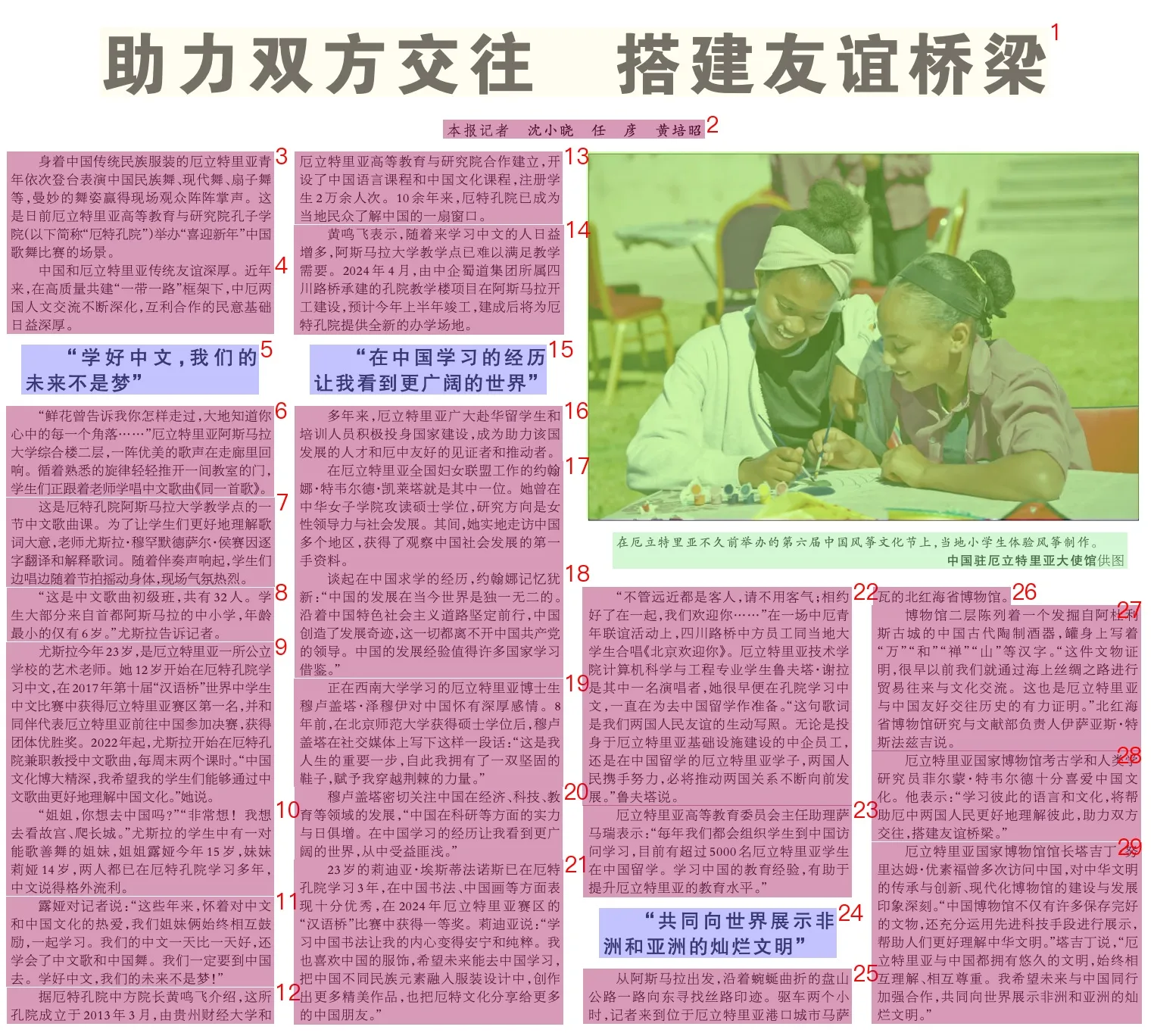
转换的markdown文档:
部署 Django:
Waiting for api.github.com...
快速开始
- 前提: 已安装 Python(建议 3.8+)与
pip。 - 安装依赖:
pip install -r requirements.txt- 数据库迁移:
python manage.py migrate- 运行开发服务器:
python manage.py runserver访问 http://127.0.0.1:8000/ 进行图片上传与解析测试;管理后台在 http://127.0.0.1:8000/admin/。
主要文件与位置
- 入口与配置:
manage.py,DjangoPaddleOCR/settings.py,DjangoPaddleOCR/urls.py。 - 应用代码:
parser_app/— 包含视图parser_app/views.py、模型parser_app/models.py、路由parser_app/urls.py、管理后台parser_app/admin.py、模板过滤器parser_app/templatetags/custom_filters.py。 - 模板:
templates/下的index.html,result.html,detail.html,conversion_history.html,record_detail.html。 - 媒体文件:
media/(上传的图片、生成的 Markdown 与导出文件)。 - 依赖:
requirements.txt。
路由与关键端点概览
- GET /: 上传首页(由
parser_app.views.index提供)。 - POST /upload/: 上传并触发解析(
parser_app.views.upload_image)。 - GET /history/: 转换记录列表(
parser_app.views.conversion_history)。 - GET /history/
/ : 单条记录详情(parser_app.views.record_detail)。 - POST /history/
/delete/ : 删除记录(parser_app.views.delete_record)。 - POST /history/bulk-delete/: 批量删除(
parser_app.views.bulk_delete_records)。 - GET /history/export/: 导出 CSV(
parser_app.views.export_records)。 - GET /history/statistics/: 统计数据接口(
parser_app.views.statistics_data)。 - GET /result/<image_id>/<result_index>/: 结果详情(
parser_app.views.result_detail)。 - POST /api/parse/: AJAX/API 解析接口(
parser_app.views.api_parse)。
媒体与静态文件
- 配置:
MEDIA_ROOT与MEDIA_URL在DjangoPaddleOCR/settings.py中配置为media/与/media/(请确认)。 - 保存位置: 生成的 Markdown 与关联图片通常在
media/markdown_<image_id>_<result_index>/目录下。
开发与调试提示
- 更换解析 API: 修改
parser_app.views内的 API地址或逻辑以对接本地/远程解析服务。 - 文件大小限制: 项目默认对上传大小有校验(参见
parser_app.views.upload_image),必要时在settings.py调整。 - 日志: 使用项目内的
logging进行调试与排错。
常用命令
# 安装依赖
pip install -r requirements.txt

# 数据库迁移
python manage.py migrate

# 创建超级用户(用于访问 admin)
python manage.py createsuperuser

# 运行开发服务器
python manage.py runserver
Docker 部署
项目提供了完整的 Docker 部署配置,包含 Gunicorn + Nginx。
前提: 已安装 Docker 与 Docker Compose。
快速启动:
docker-compose up -d访问 http://localhost 即可。
关键文件说明:
Dockerfile: 构建 Django 应用镜像(Python 3.9 + Gunicorn + 依赖)。docker-compose.yml: 定义两个服务:web: Django 应用容器,暴露 8000 端口。nginx: Nginx 反向代理容器,暴露 80 端口,负责静态文件、媒体文件与请求转发。
nginx.conf: Nginx 配置文件,配置代理规则与缓存策略。.dockerignore: Docker 构建时忽略的文件列表。
常见操作:
# 启动服务
docker-compose up -d

# 查看日志
docker-compose logs -f web

# 停止服务
docker-compose down

# 重建镜像
docker-compose build --no-cache

# 进入 web 容器
docker exec -it django_paddle_ocr bash

# 在容器内创建超级用户
docker exec -it django_paddle_ocr python manage.py createsuperuser生产部署建议:
- 修改
DjangoPaddleOCR/settings.py中的DEBUG=False、ALLOWED_HOSTS与SECRET_KEY。 - 使用环境变量管理敏感信息(可参考
docker-compose.yml中的environment部分)。 - 数据库推荐替换为 PostgreSQL(修改
docker-compose.yml添加 PostgreSQL 服务)。 - 配置 HTTPS(通过 Nginx 与 Let’s Encrypt 证书)。
- 使用卷持久化数据库与媒体文件。
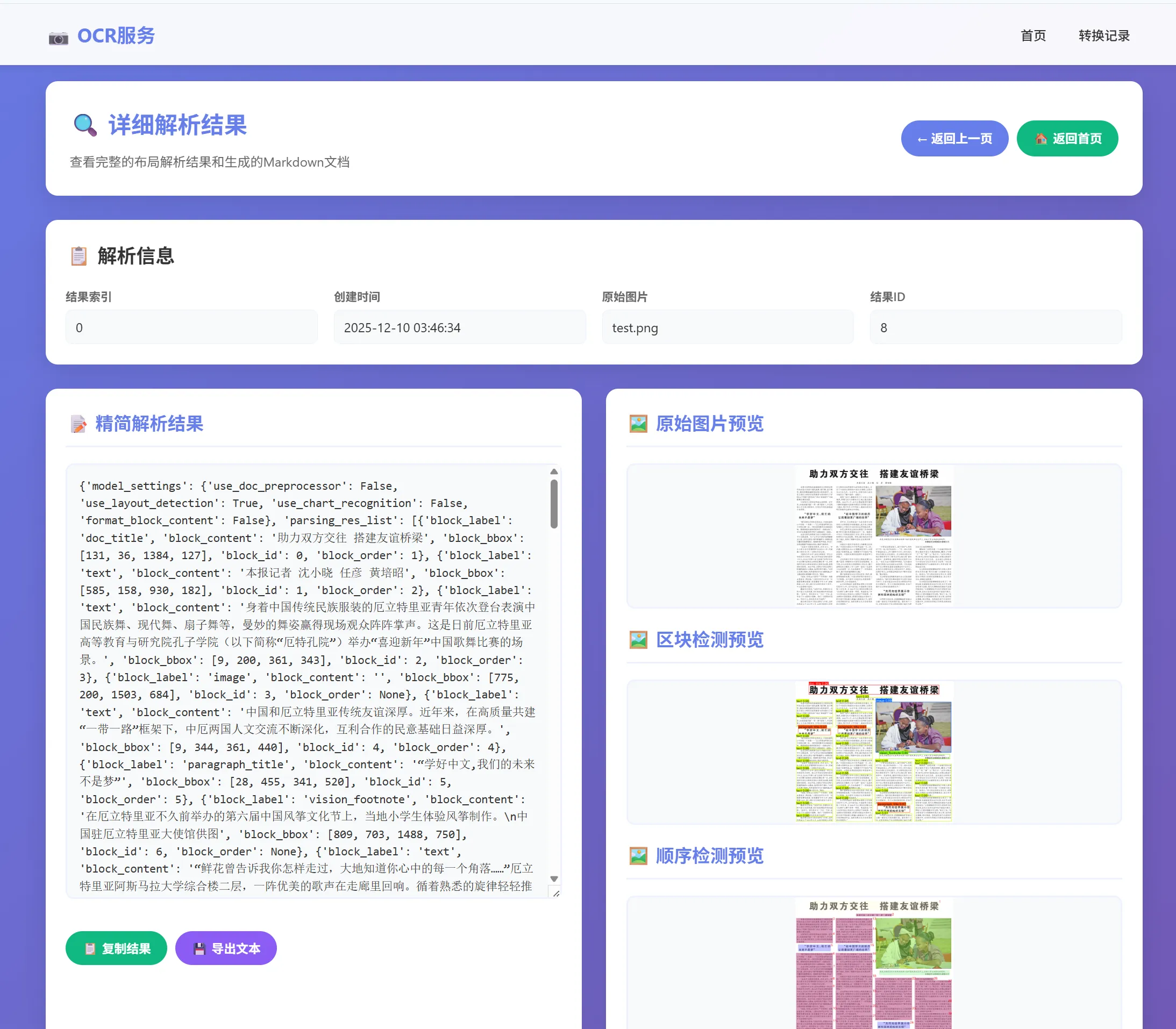
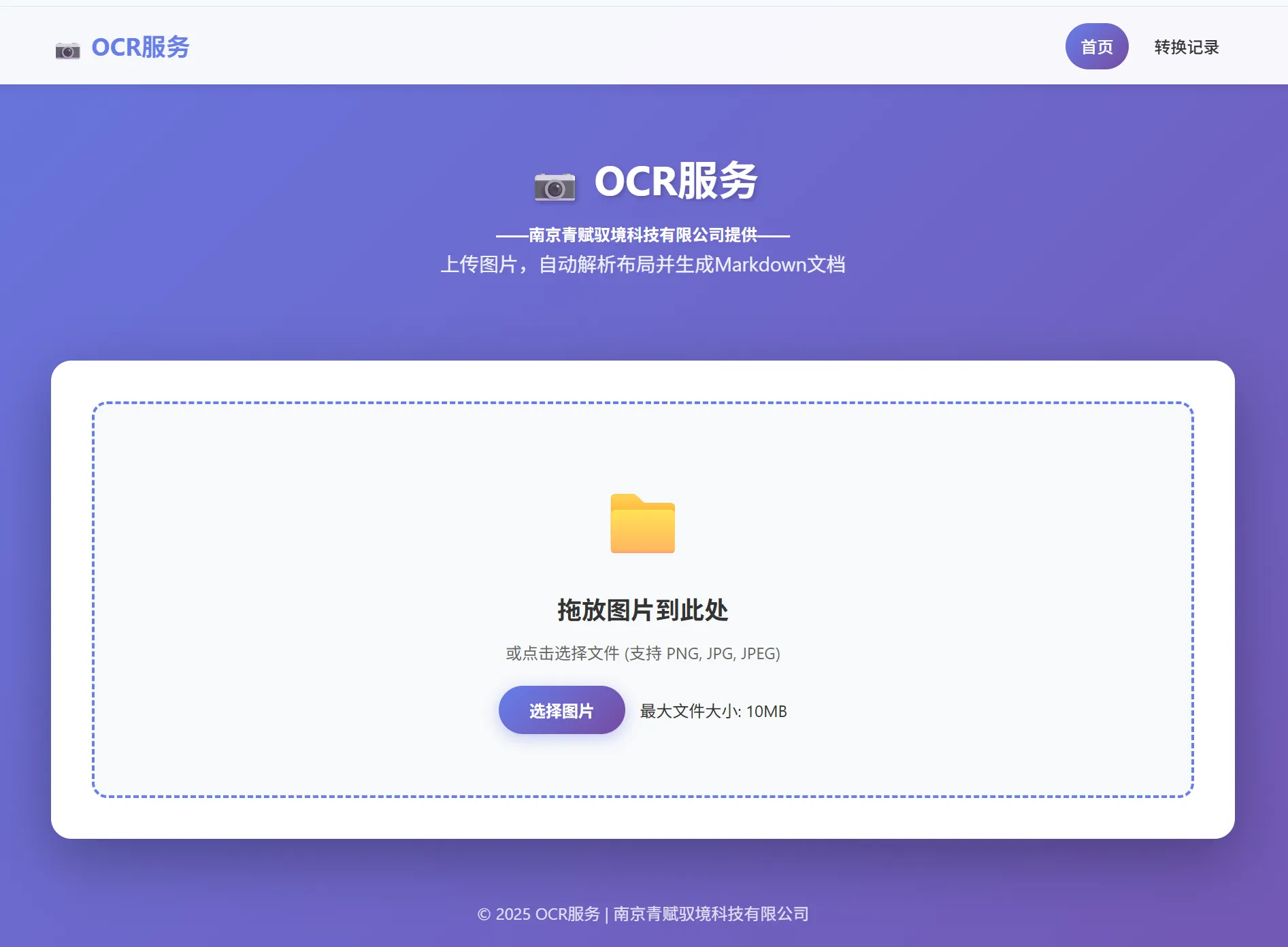
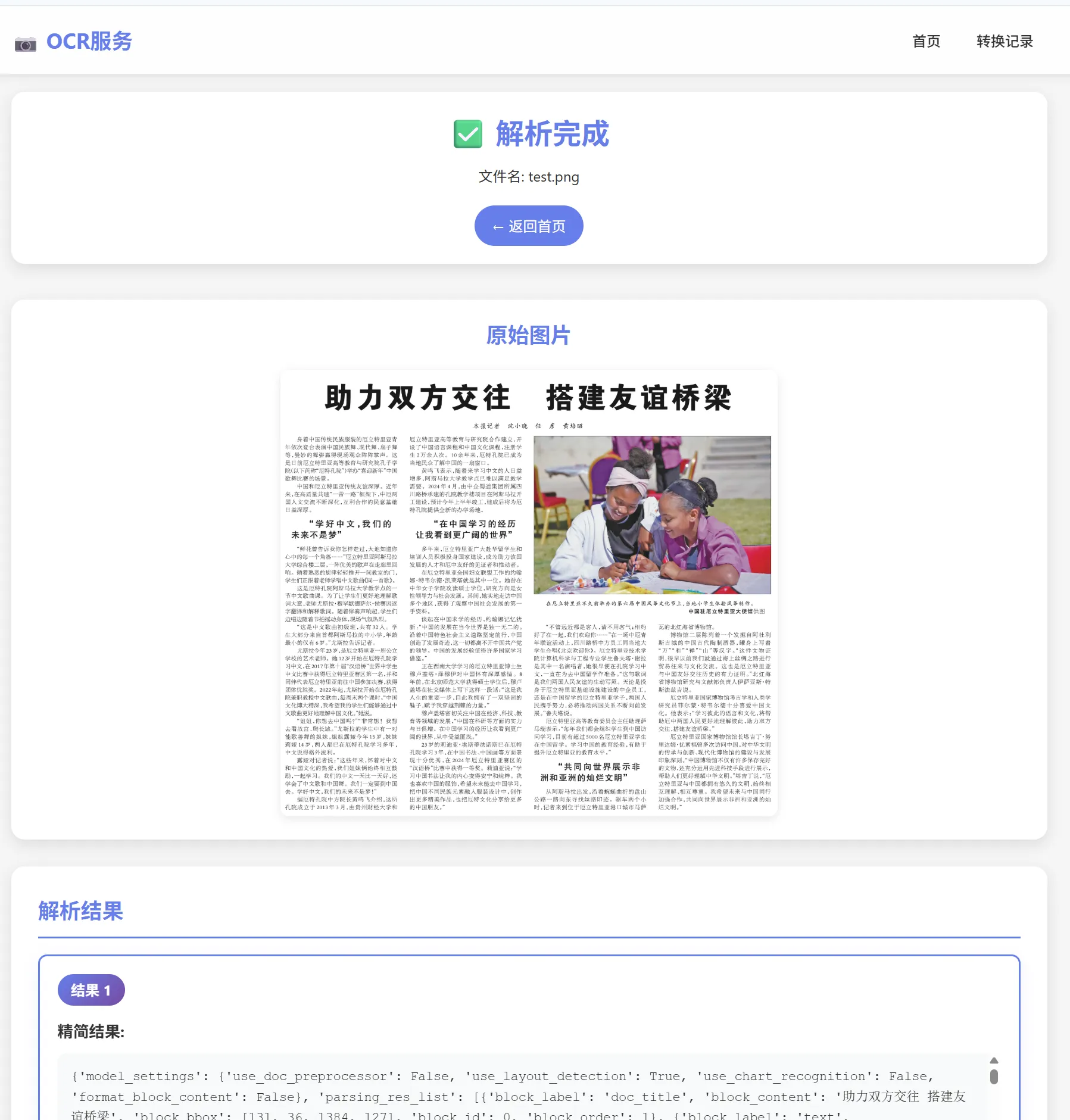
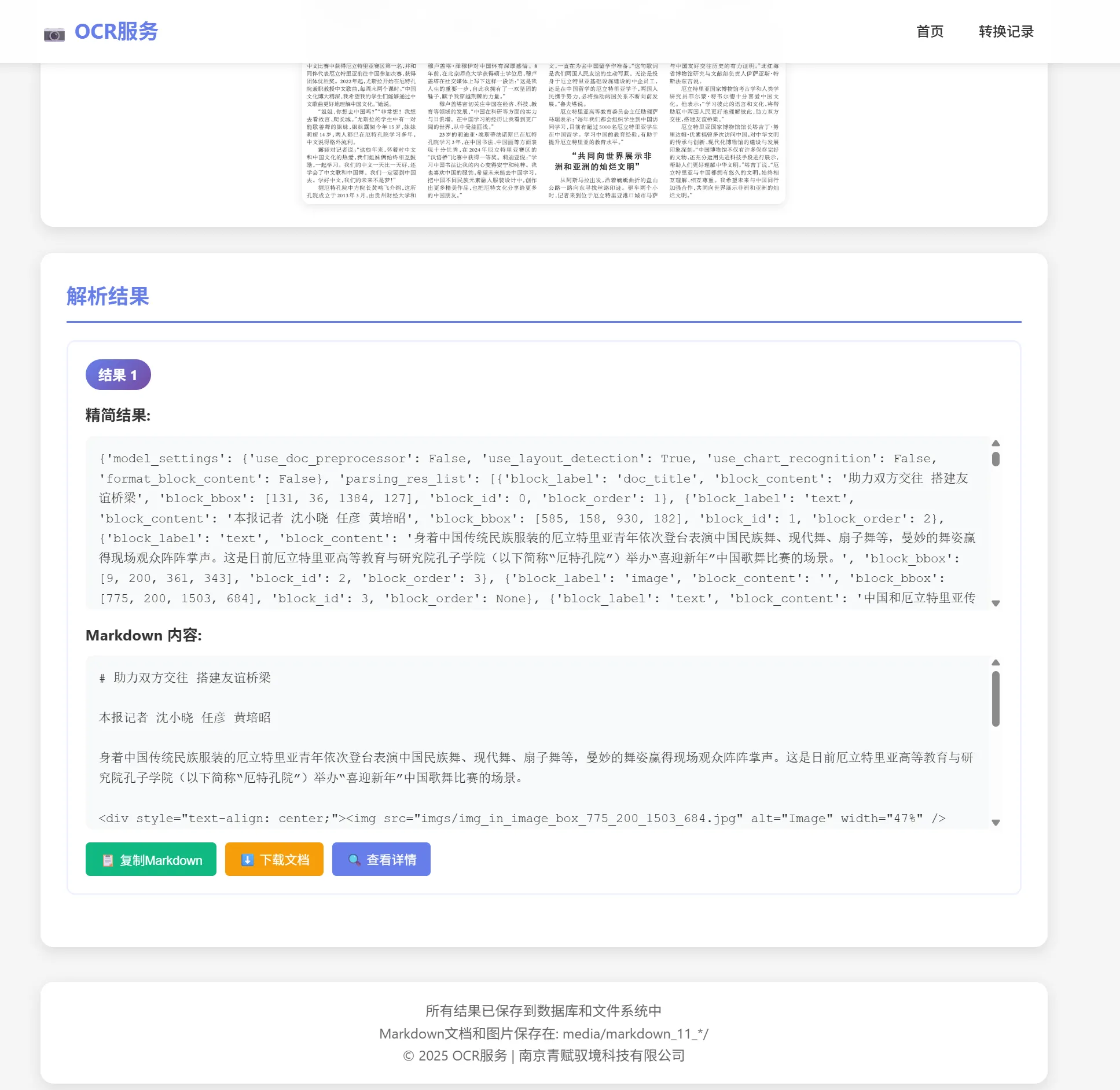
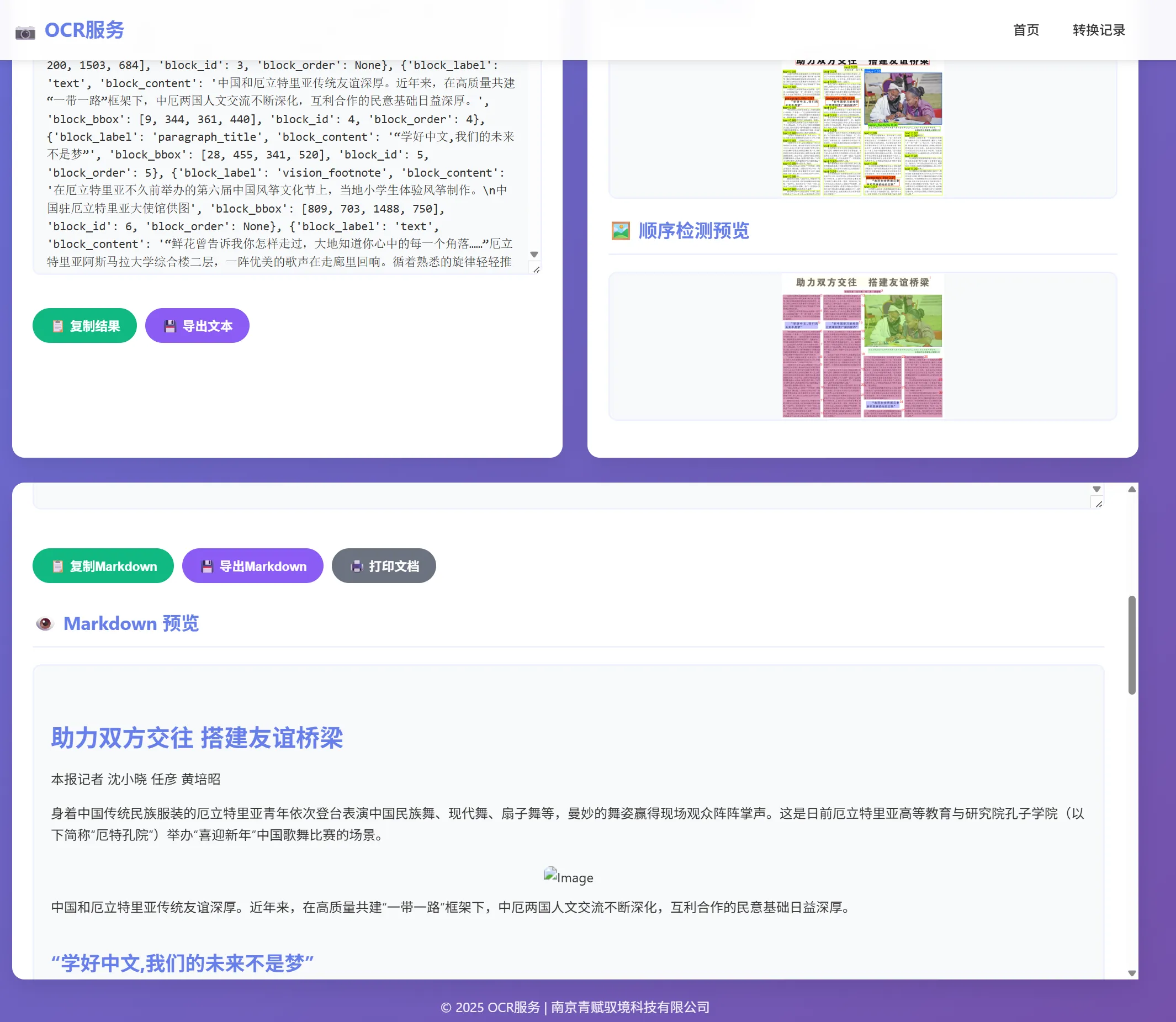
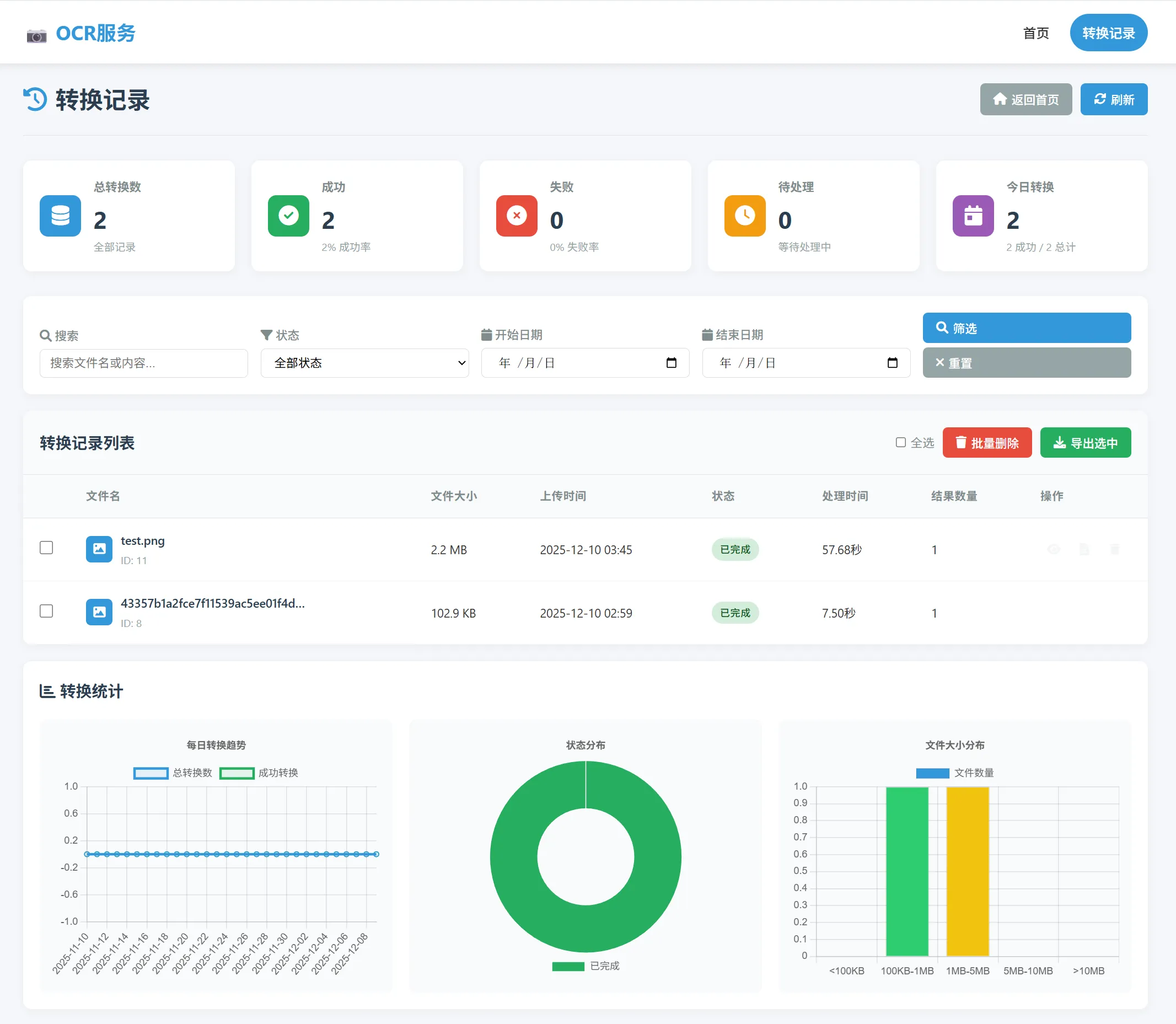
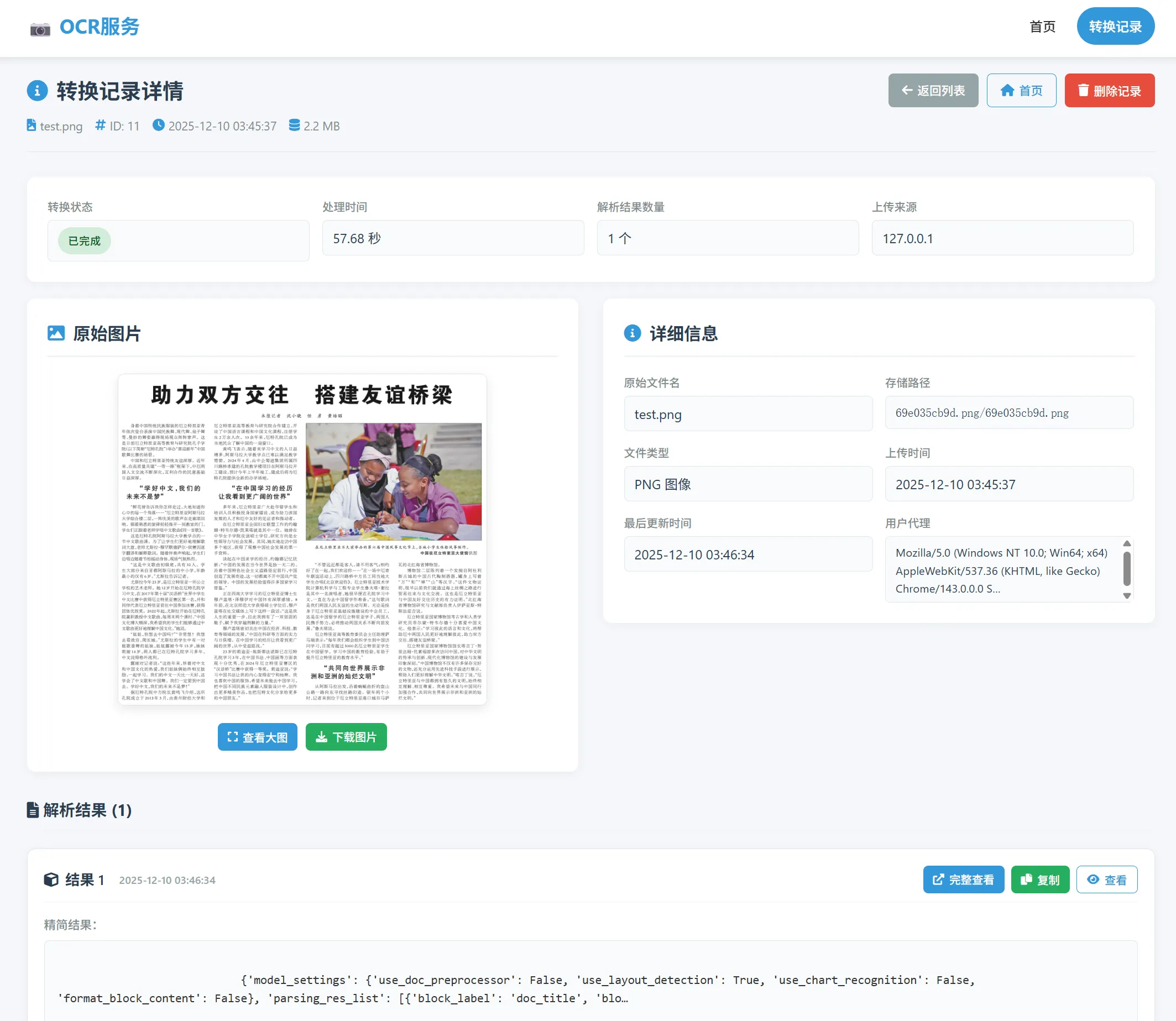
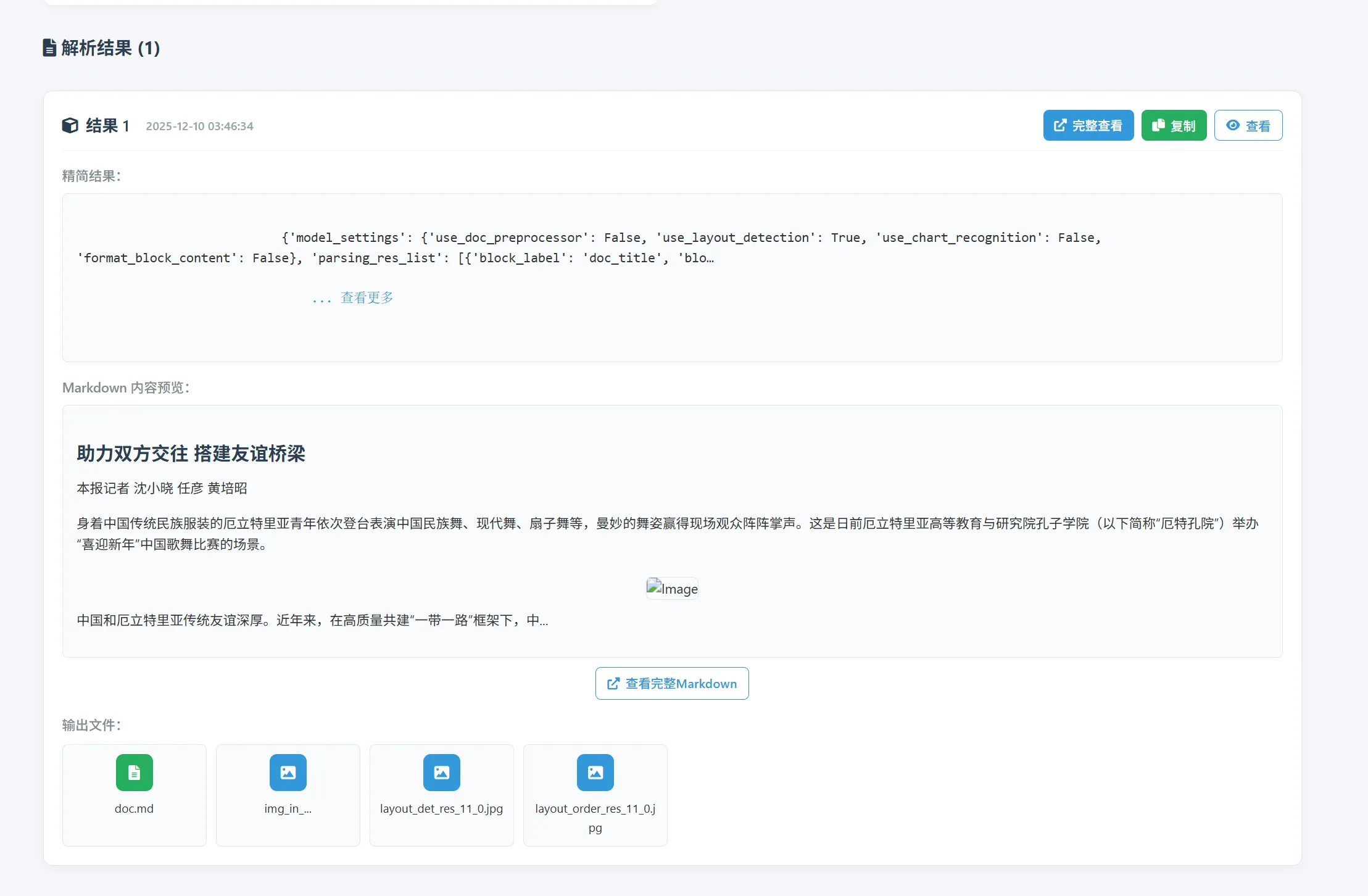
运行效果
Django-PaddleOCR-VL OCR服务部署
https://lorenzofeng.top/posts/paddle-ocr/